
Fast and Deep are not shown
Check which PLAI version is selected.
Choose PLAI 2.0 if it is available, then reopen the selector.
Open the version and thinking-mode selector in Chat, choose the available PLAI version and check the label before you send your next message. PLAI 2.0 also offers Fast and Deep thinking.
Near the message composer, select Choose your PLAI version and thinking mode. The menu separates the PLAI version from the thinking choice so you can see which setting you are changing.
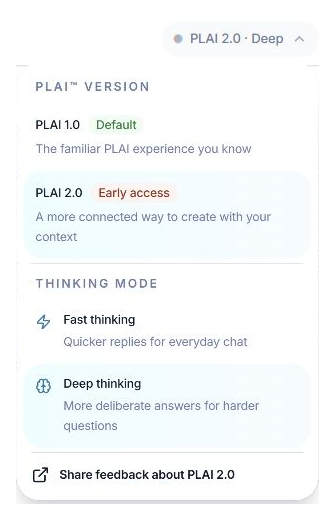
Choose a PLAI version, then a thinking mode when PLAI 2.0 is selected.
Select PLAI 1.0 or PLAI 2.0 from the options shown. If the Meet PLAI 2.0 introduction opens and you want to use that version, select Try PLAI 2.0. Not now selects PLAI 1.0; it is not the same action as closing the introduction.
Use Fast for a straightforward request, or try Deep for a task with several constraints that you want PLAI to consider. These are choices about how the request is handled, not guarantees about accuracy or how long an answer will take.
Read the version and mode displayed in Chat, then send the request. If you change settings during your work, check the new selection rather than assuming the earlier one still applies. Continue to review the generated answer whichever mode you use.
The version chosen in Chat also affects the tools requested by the AI Tools catalogue. If the catalogue looks different than expected, return to Chat and check the version, then reopen AI Tools. A populated catalogue alone does not identify the selected version.
The Chat selector shows the version and available thinking mode you want to use for your next request.
Check which PLAI version is selected.
Choose PLAI 2.0 if it is available, then reopen the selector.
Check that you are in the expected account and that Chat has loaded.
Use the missing-feature guide or contact support with the selector options you can see.
Tell the team what you were trying to do and what happened.
Contact support or send feedback