
Search returns no useful tools
Check the search phrase and active category filters.
Try a broader teaching term, then clear the filters and browse All Tools.
Open AI Tools and search for the outcome you need, such as a worksheet. Compare a tool’s purpose and inputs before starting, rather than choosing by its name alone.
Choose AI Tools from the main navigation. Start with All Tools to browse the tools available to your account, or My Favourites for tools you have already starred.
Enter a useful word or phrase in Search tools…, such as “worksheet” or the subject you need. If there are no useful matches, try a broader term and clear earlier filters. Clear the search to browse the catalogue again.
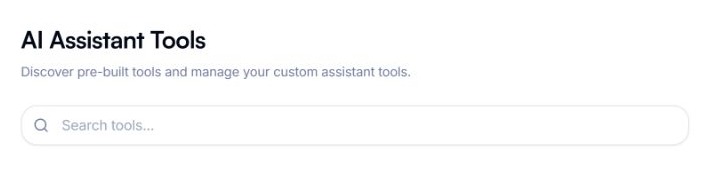
Enter a task or subject, such as worksheet.
Enter a task or subject in Search tools to narrow the catalogue.
Use the category and other filter controls shown in the catalogue to focus the list. Check the active filters when a tool seems to have disappeared; a filter can hide a tool that is still available.
Open a promising tool and read what it creates. Look at the required fields and choices: learner level, topic, question count or source material can help you decide whether it fits the task. Choose a tool that asks for the information relevant to your intended result.
Return to Chat and check the selected PLAI version if the catalogue is different than expected. Tools can also differ by account and school availability. If you still cannot find the tool, use the missing-feature guide rather than assuming a colleague’s catalogue must match yours.
Continue with the tool’s input form when you are ready to create. For a tool you will use often, select its star so you can find it in My Favourites.
You have chosen an available tool whose purpose and inputs fit your teaching task.
Check the search phrase and active category filters.
Try a broader teaching term, then clear the filters and browse All Tools.
Compare what they create and the details their forms request.
Choose the one that matches your output and available source material; you do not need to run both to inspect their inputs.
Tell the team what you were trying to do and what happened.
Contact support or send feedback