
Send is unavailable
Check that your request contains text and that a previous response is not still running.
Wait for the current response to finish or read its error message, then try the Send control again.
Start a new chat with the teaching outcome you have in mind. Tell PLAI who the work is for, what it should achieve and how you want the result presented; then review the response and ask for changes where needed.
Choose New Chat. Before switching away from another task, save any resource edits you want to keep and read any warning about leaving a response in progress.
For example: “Explain evaporation to learners aged 8–9 using a familiar example, then give me two questions to check understanding.” Include the topic, age or level, objective and format. Add constraints such as lesson length or reading level when they matter.
Look at the context selection and PLAI version near the composer. Change them if they do not match this task. Select Send and wait for the response to finish before judging the complete answer.
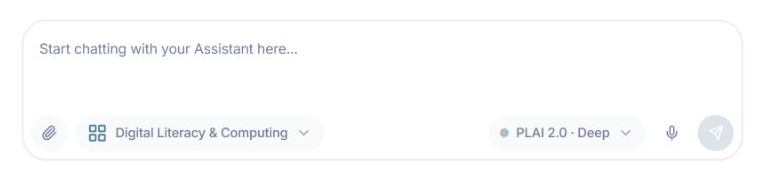
Check the context and PLAI setting beside your message before sending.
Check factual claims, examples, instructions and any answers. If the response includes a teaching resource, open it and review the content as well as the chat message. Treat generated material as a draft you are responsible for choosing and adapting.
Ask for a specific change, such as “Use a simpler example” or “Keep the explanation but make the questions more challenging.” State what you want to preserve as well as what should change.
Use Saved Chats to return to a previous conversation. Save edits to an editable resource with its Save action. To use a plain response in another document, use Copy response and check the pasted result before saving it there.
You have a response you have checked and a clear next step: refine it, save a resource or use the text in your own document.
Check that your request contains text and that a previous response is not still running.
Wait for the current response to finish or read its error message, then try the Send control again.
Look for an unclear audience, objective or output format in your request.
Add the missing detail in a focused follow-up rather than repeatedly sending the same prompt.
Tell the team what you were trying to do and what happened.
Contact support or send feedback