
A class is not listed
Check that the class is available to your account and is the one you intended to use.
Write the necessary non-sensitive teaching detail in the prompt for now, and use the class-access guide if you need that class available.
Useful context tells PLAI what matters for this task. Combine a clear written brief with a relevant class or Teaching Assistant selection when available, and check the selection before you send the message.
Write the learner age or level, topic, objective and any important constraints. For example: “Year 6, comparing fractions, ten-minute activity, no calculators.” These details help even when you do not have a class set up in TopSchool.
In Chat, open Select Context near the composer. Choose an available class when the task concerns that class, or a Teaching Assistant whose purpose matches the work. Read the name that appears after selection.
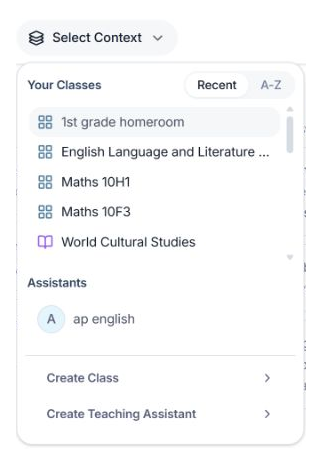
Open Select Context to choose an available class or Teaching Assistant.
Your selected context does not replace the prompt. Say whether you want an explanation, plan, questions or another output, and mention relevant differences for this lesson. Include only the information needed; do not paste personal student details to make a brief feel more complete.
Before asking about another class or subject, look again at the selected context. Change the selection and make the change clear in the next request. Earlier messages remain part of the conversation, so a new chat can be clearer for an unrelated task.
Check that the answer fits the level and constraints you gave. If it does not, name the mismatch in a follow-up. Your Teaching Profile, selected context and an AI tool’s form are different sources of information; check the inputs for each new tool task.
Your request gives PLAI relevant teaching detail, and you have checked the context selected for the conversation.
Check that the class is available to your account and is the one you intended to use.
Write the necessary non-sensitive teaching detail in the prompt for now, and use the class-access guide if you need that class available.
Check the selected context and any earlier instructions in the conversation.
State the correct level explicitly or begin a new chat for the different task.
Tell the team what you were trying to do and what happened.
Contact support or send feedback