
Help Center
For teachers

Save your work and reopen it later

Keep the right version of your work: the conversation, the editable resource, a file in Resources or a download.

Choose what you want to keep

What you keepWhere to returnGood to know
Your conversationSaved ChatsChat history and an edited resource are different things.
Edits to a generated resourceThe resource in its original chatChoose Save Changes after editing the resource.
A PDF or Word file in ResourcesThe destination folder you choseThis is a file copy. Later source edits do not update it automatically.
A downloaded fileYour browser downloads or chosen device folderCheck the file before printing or sharing it.

Here’s how

  1. Choose what you want to keep

    Chat history lets you return to a conversation. Save Changes keeps edits to a generated resource. Save to Resources & Uploads creates a PDF or Word file in a chosen folder. Download keeps a file on your device. These are different destinations, so choose the one that matches what you want to do next.

  2. Save the editable resource

    In its editing panel, open Save & Export and choose Save Changes after making changes. Wait for the save to finish. This is the step to use when you want to return to the editable resource later.

  3. Create a file copy in Resources

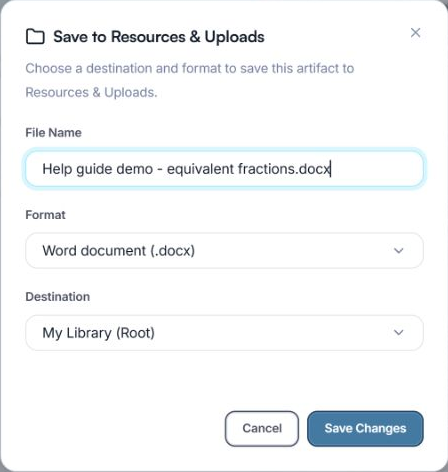
    Open Save & Export, or Export for the result you are viewing, and choose Save to Resources & Uploads. Enter a helpful File Name and choose PDF or Word under Format. Check Destination before saving. If a folder selector is available, choose the location you need; otherwise use the location shown, such as My Library (Root). Select Save Changes and wait for the confirmation.

    Save to Resources & Uploads dialog showing a file name, Word format, My Library destination and Save Changes button.
    1. Callout 1: File Name and FormatGive the copy a recognisable name and choose the format you need.
    2. Callout 2: DestinationCheck where the file will be saved. This example uses My Library (Root).
    3. Callout 3: Save ChangesUse this button to save the file copy to the chosen destination.

    Check the file name, format and destination, then choose Save Changes to create your file copy.

  4. Handle an existing file name

    If the dialog warns that the name already exists, use the suggested unique name or choose a name that makes the new copy easy to recognise. Treat this as a new file copy, rather than assuming it updates an earlier export.

  5. Find the item you saved

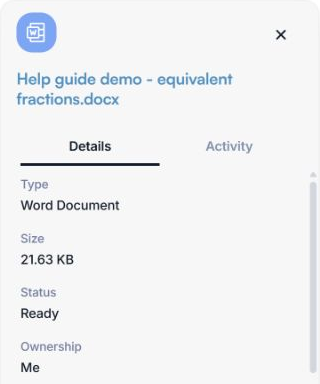
    To continue editing, return to the original chat and open its resource. To find an exported file, open Resources & Uploads and the destination you selected, then search for the file name. For a local download, check your browser downloads. Inspect the content so you know you found the intended version.

    Details panel for a saved Word document showing its file name, type, size and Ready status.
    1. Callout 1: File nameCheck that this is the copy you intended to save.
    2. Callout 2: DetailsReview the file type and processing status. This example shows Ready.

    Select the saved file and check its name, type and status in Details.

  6. Read a warning before leaving

    If a warning appears when leaving a chat or editor, stay when you still need to save or finish the work. Choose a leave or discard action only when you are ready to lose the unsaved changes described in that warning. A previously exported file does not automatically receive later edits to its source.

Check your result

You know where each saved item lives and can reopen the version you need.

If something doesn’t look right

My saved work is missing

Check whether you used Save Changes, Save to Resources & Uploads or Download, then look in the matching destination.

Return to the original chat for the editable resource. For a file, clear the search and use Select All in the Resources type filter before searching again.

My file does not include the latest edits

Compare the file with the current editable resource.

Save the latest edits and create a new file copy. Use a clear name so you can distinguish it from the earlier copy.

Need more help?

Tell the team what you were trying to do and what happened.

Contact support or send feedback