
The answer does not match your preference
Check that the preference was saved and that the request does not ask for a conflicting style.
State the desired style clearly in a follow-up, then review the result.
Choose how you would like PLAI to respond in Teaching Profile’s AI Behavior tab, then save the preferences you want to use.
Select Teaching Profile, then AI Behavior. Read the available response preferences before changing them.
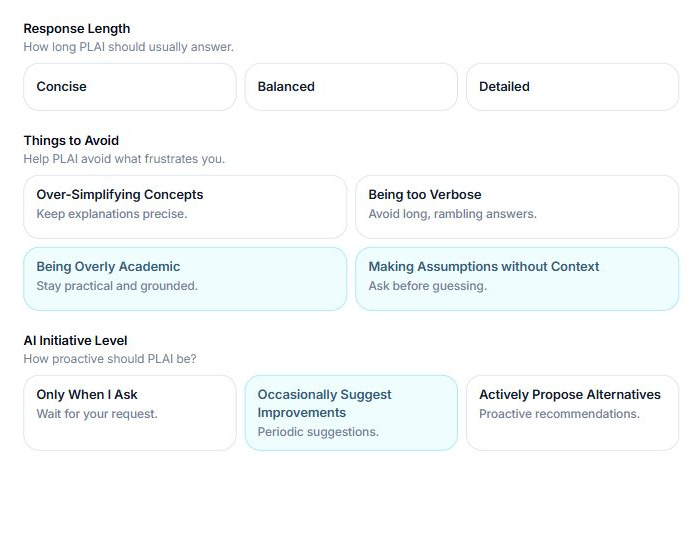
Choose the response preferences that suit your teaching work.
Set the tone, explanation style, response length and example density that suit your work. For a concise planning aid, you may prefer shorter responses; for exploring a difficult concept, more explanation may be useful.
Consider how much initiative you want PLAI to take and select relevant things to avoid. These are preferences for assistance, not a replacement for clear instructions in the task itself.
Use the profile save action and wait for confirmation. Reopen AI Behavior to check that your choices are saved.
Start a new task and review the response. Add a specific instruction when a particular lesson needs a different length, tone or level of detail. Continue checking accuracy and suitability whatever preferences you choose.
Your chosen response preferences are saved and ready to use as guidance for future work.
Check that the preference was saved and that the request does not ask for a conflicting style.
State the desired style clearly in a follow-up, then review the result.
Tell the team what you were trying to do and what happened.
Contact support or send feedback