
The library looks empty
Check the tab, folder, search text and selected file types.
Clear the search and choose Select All in Filter. Do not select Clear All when you want to show every type.
Find the file you need by choosing the right library, searching by name and checking type filters.
Select Resources & Uploads in the navigation. Choose My Library for your own files, Class Resources for class materials, or School Resources for school-wide materials. Start with the place where the file was saved or shared.

Start with the library where your file was saved or shared.
Enter a distinctive part of the name in Search Resources. Check the current folder as well as the tab. If a search returns nothing, clear the text and try a shorter term.
Open Filter to review Folders, Documents and Images. Select the types you want to include. Use Select All to show all types. Clear All deselects those types; it is not the recovery action for hidden files.
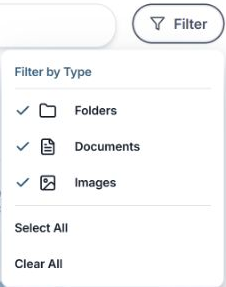
Use Select All when you want folders, documents and images included in the results.
Use Grid or List to change the presentation. Use the sort control when you want to bring recently modified material into view. Changing the view helps you browse; it does not move or create files.
Select an item and use the details panel to check information such as its name and processing state. Open the file or its available actions only after confirming that it is the intended item.
Clear the search, choose Select All in Filter and check the destination folder again. If the item was a local download, look in your browser downloads instead. If access to shared material has changed, ask the owner or school contact for help.
You can locate the intended resource and distinguish an empty search from a missing file.
Check the tab, folder, search text and selected file types.
Clear the search and choose Select All in Filter. Do not select Clear All when you want to show every type.
Check its processing status and available actions.
Wait for processing to finish. For an error, follow the upload and processing troubleshooting guide.
Tell the team what you were trying to do and what happened.
Contact support or send feedback