
The download is missing
Check your browser downloads and any download or pop-up message.
Keep the resource open while checking. If the export reports an error, record the message and try again once the content is ready.
Copy a Chat response or create a PDF, Word or printed version of a teaching resource.
Use Copy response for text you want to paste elsewhere. Use the resource editor for a printable page or a PDF or Word download. Use Save to Resources & Uploads when you want a file inside TopSchool instead of on your device.
Below the completed response, select Copy response. Paste into your destination document and review the result. Formatting depends on the receiving application, so check lists, equations and tables instead of assuming the pasted version will look identical.
Choose Edit response for a completed Chat response, or use the editing panel for a generated resource. Review the content first. If you have edited a generated resource, use Save & Export → Save Changes to keep those source changes as well.
Open Export or Save & Export. Choose Print to open the print flow, Download PDF for a PDF file, or Download Microsoft Word for a Word document. These are the editor options; an image has its own Download control and produces a PNG.
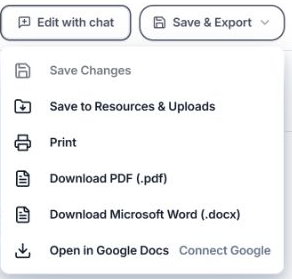
Use Print for a print preview, or choose PDF or Microsoft Word to download a file.
Open the downloaded file, or review the print preview before printing. Check page breaks, titles, tables, equations and answer content. For a quiz, ensure the material you distribute is appropriate for learners rather than assuming every output hides answers.
Name or store the file where you can find it for the lesson. A download is separate from the editable resource and from files in Resources. After changing the source, export again if you need an updated copy.
You have checked the copied text, downloaded file or print preview you intend to use.
Check your browser downloads and any download or pop-up message.
Keep the resource open while checking. If the export reports an error, record the message and try again once the content is ready.
Compare the pasted or downloaded version with the original resource.
Adjust the receiving document or export a fresh version after simplifying the affected formatting. Send a sanitised example to support if a reproducible issue remains.
Tell the team what you were trying to do and what happened.
Contact support or send feedback