
Edit, Move or Delete is unavailable
Check whether this is your file, shared material or a class-linked resource.
Use the actions offered for your access level. Ask the owner or school contact if the material needs reorganising.
Create a clear folder structure and use the available file actions without losing track of shared work.
Open the library and location where you want the folder. Choose New Folder, enter a helpful Folder Name, then choose Create. Wait for confirmation and open the new folder to check its location.
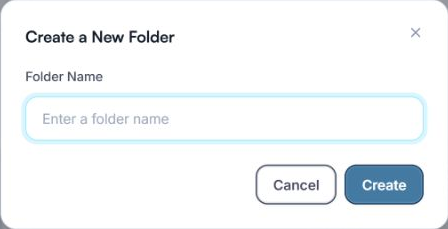
Enter a name that will help you recognise the folder, then choose Create.
Open the item’s menu and choose Edit when it is available. Update the name or description shown in the form and save. For a file, editing these details is different from editing the document’s contents.
When Move is available in the file menu, choose the destination folder and complete the move. Open the destination and confirm the item is there. Move is not offered in every location, including some class-resource contexts.
Choose Make a copy when you want a file in another destination. Select the destination and complete the operation, then check the resulting item. Keep names clear so that colleagues can tell which version to use.
Before selecting Delete, confirm the exact file or folder and whether other people use it. Read any confirmation carefully. A folder deletion can include its contents. For a linked class resource, Detach from class is a separate action from deleting the underlying file; choose the action that matches your intention.
Return to the destination and use search or Select All in the type filter if needed. Open the intended file or folder to confirm the change. If the action failed, read the error before repeating it.
Your files and folders are easier to find, and you have checked the effect of each change.
Check whether this is your file, shared material or a class-linked resource.
Use the actions offered for your access level. Ask the owner or school contact if the material needs reorganising.
Check the destination selected in the move form.
Search there with all file types selected. Avoid creating another copy until you have checked the move result.
Tell the team what you were trying to do and what happened.
Contact support or send feedback