
You cannot continue
Look for a required field or validation message on the current screen.
Complete the highlighted field and try again. If the class may already have been created, check the class list before starting a second copy.
Create a class from Classes & Students, add its teaching context and resources, then confirm the setup. You can add students afterwards.
You need access to class creation in your school workspace.
Open Classes & Students and choose Add Class. Give the class a name you will recognise later, such as Year 5 Science, rather than a temporary lesson title.
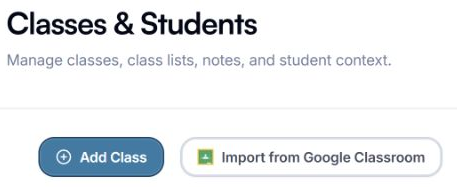
Start here when you want to create a class.
Choose Add Class to start setting up a class in TopSchool.
Complete the required class details, including the subject, academic year and grade or level. Add a short description that helps you distinguish this class from others. Select Next when the required fields are complete.
Describe what matters for teaching this class: its curriculum, current topics and useful approaches to learning. Add relevant files through the resource controls. Keep the context focused on teaching needs and avoid unnecessary personal details about students.
Continue through the remaining setup screens. If a teacher or collaborator stage appears, check the lead teacher and the people who should work with this class. The number of screens can differ according to your access and school setup.
Choose Confirm on the final screen and wait for the operation to finish. Find the new class in your class list and reopen its details. Check its name, subject and context before adding students or assigning work.
The class appears in your list with the details and context you entered.
Look for a required field or validation message on the current screen.
Complete the highlighted field and try again. If the class may already have been created, check the class list before starting a second copy.
Tell the team what you were trying to do and what happened.
Contact support or send feedback